
@pilates 24/7 - Android PiP Unit Troubleshooting Checklist
Use this checklist to resolve common issues with your PiP (Portable Instructor Pod) units before contacting support.
When to Contact HQ
If issues continue after trying these steps, email monique@atpilates.studio and charlotte@atpilates.studio. Include your studio name, station number, and clear images or videos showing the issue, plus what you’ve already tried. Email is the best way to report these issues unless they make your studio completely unusable. We cannot provide an on-call service, and text messages about minor resets may get lost. If you have fixed the issue by a simple restart or cache clear, there’s us need to let me know unless the issue is consistently happeneing.
Internet Connection
Check that all PiP screens are connected to Wi-Fi. Start with the router: make sure it’s powered on and online, restart if needed. If one PiP unit is not connecting, move it closer to the router, double-check the Wi-Fi password, and restart the PiP unit.
App and Program Issues
Please use you studio level logins
Clear Cache in Chrome
Open Chrome on the PiP unit
Tap the three dots in the top-right corner
Go to History and tap Clear Browsing Data
Select Cached images and files, then Clear data
Restart Chrome
Bluetooth and Headphones
Ensure Bluetooth is ON. Check headphones are charged and in pairing mode. If they won’t connect, forget and re-pair them, rename them to match the station number, and restart the PiP unit if needed.
USB-C Port and Physical Connections
Make sure there’s nothing plugged into the USB-C port unless needed. Check all power and HDMI cables are secure.
Power Issues
Plug the PiP unit directly into the back of the screen at the power inlet to confirm it’s not a screen issue
Once this is confirmed, pull apart the stand section by section to check that all connections are firmly in place
Ensure that the silver button on the back of the base is fully depressed – this is required for power to flow properly.
Once confirmed please disconnect and reconnect all connectors at base the base and back of the screen to ensure all are plugged in correctly. The below is a QR code link to a video of the setup instructions to help guide you. PLEASE ENSURE THE UNIT IS UNPLUGGED BEFORE COMPLETING THIS.
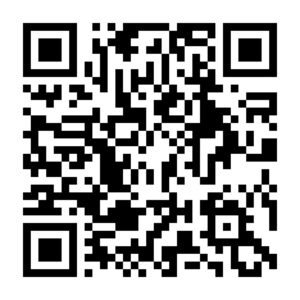
Please ensure the battery is installed correctly as per the below video. PLEASE ENSURE THE UNIT IS UNPLUGGED BEFORE COMPLETING THIS.
Audio and Display Issues
Confirm volume is up. Play a test video for sound. If no audio, re-pair or re-connect headphones, check Bluetooth settings, and restart the unit. Check for flickering or distortion in the display.
Final Notes
Keep PiP units clear of obstructions for good Wi-Fi and Bluetooth performance. If multiple units are affected, always start by checking the router. Make sure the PiP unit’s software is up to date to avoid bugs.
